



PDFs are widely recognized as a go-to format for sharing digital documents, but many users are unaware of the text-to-speech (TTS) tools available to read them aloud. This article highlights the advantages of listening to PDFs, examines the built-in TTS functionalities on different devices, and explains why Speechify is the top option for converting any PDF into an engaging audio experience.
Benefits of Having PDFs Read Aloud
In today's digital age, the way we consume content is continuously evolving, and one notable advancement is the ability to have PDFs read aloud. Transforming silent text into audible narration offers a dynamic approach to information consumption, catering to various learning styles and accessibility needs. Some benefits of having PDFs read aloud include:
- Accessibility for disabilities: TTS aids individuals with visual impairments or dyslexia, offering them the opportunity to access PDF documents with ease.
- Multitasking: Users can easily listen to a PDF audio reader while doing other tasks.
- Learning preference: Auditory learners can better understand and retain information when it's read aloud.
- Language learning: Non-native English speakers can benefit from hearing the pronunciation of words.
How to Read PDFs Aloud
Whether you're visually impaired, a multitasker looking to "read" while doing chores, or someone who simply prefers auditory learning, having your PDFs read aloud can be immensely beneficial, so let’s explore the top ways to have any PDF read aloud:
Option 1: How to Read PDFs Aloud with Built-in Text To Speech for Free
Whether you're on Windows, Mac, ChromeOS, iPhone, or Android, you can have text read aloud to you with ease. However, built-in TTS capabilities can vary depending on the device or platform. With these step-by-step guides, you can effortlessly utilize the built-in TTS features on your preferred platform to read PDF text aloud.
How to use Built-in Text To Speech on Windows to Read PDFs Aloud
Windows, developed by Microsoft, is one of the most widely used operating systems in the world, lauded for its versatility and adaptability. An essential part of its suite of accessibility tools is the built-in text to speech feature, designed to read textual content aloud for users. Delve into this guide to understand how to activate and efficiently use this function on your Windows device.
- Access TTS settings:
- Click on the 'Start' button or press the Windows key.
- Go to 'Settings' (gear icon).
- Navigate to 'Ease of Access.’
- Select 'Speech' from the left pane.
- Turn on TTS:
- Toggle on the switch under 'Narrator' to enable the feature.
- Customize voice and speed:
- Under 'Choose a voice', select a preferred voice.
- Adjust the slider under 'Change the speed of the voice' to your liking.
- Use TTS:
- When you want to use TTS, highlight the text you want to be read aloud.
- Press the 'Ctrl + Win + Enter' keys together to activate the Narrator, which will start reading the text.
How to use Built-in Text To Speech on Mac to Read PDFs Aloud
Apple's Mac computers have long been recognized for their sleek design and user-friendly features. A testament to their dedication to accessibility is the Mac's integrated text to speech function, which offers users the convenience of having text content read out loud. Explore the steps below to enable and make the most of this feature on your Mac.
- Access TTS settings:
- Click on the Apple menu at the top-left corner.
- Go to 'System Preferences.’
- Choose 'Accessibility.’
- Under the 'Vision' category, select 'Speech.’
- Enable TTS:
- Check the box that says 'Speak selected text when the key is pressed.’
- Customize voice and rate:
- Choose a voice from the 'System Voice' dropdown.
- Adjust the speaking rate using the slider.
- Use TTS:
- Highlight the text you wish to read out.
- Use the specified key combination (default is 'Option + Esc') to start the TTS.
How to use Built-in Text To Speech on ChromeOS to Read PDFs Aloud
ChromeOS, the operating system of Chromebooks, is known for its cloud-based operations and simplicity. One of its key accessibility features is the built-in text to speech (TTS) capability, allowing users to have content read out loud to them. Here's a step-by-step guide on how to harness this feature on ChromeOS.
- Access TTS settings:
- Click on the status area, where your account picture appears.
- Go to 'Settings.’
- Under 'Advanced', select 'Accessibility.’
- Choose 'Manage accessibility features.’
- Enable TTS:
- Turn on 'Enable ChromeVox,’ the built-in screen reader.
- Use TTS:
- As you navigate through web pages or docs, ChromeVox will read the content aloud.
How to use Built-in Text To Speech on iPhone to Read PDFs Aloud
Apple's commitment to accessibility is evident in its range of features on the iPhone. The built-in text to speech function, known as Speak Selection, empowers users to have any text read back to them with a simple gesture. Dive into this tutorial to learn how to activate and use this beneficial tool on your iPhone.
- Access TTS settings:
- Open 'Settings.’
- Navigate to 'Accessibility.’
- Under the 'Vision' category, tap on 'Spoken Content.’
- Enable TTS:
- Toggle on 'Speak Selection.’
- Customize voice and speed:
- Tap on 'Voices' to choose a preferred voice.
- Adjust the speaking rate using the slider.
- Use TTS:
- Highlight the text you wish to read out.
- Tap on the 'Speak' option that appears.
How to use Built-in Text to Speech on Android to Read PDFs Aloud
Android, with its wide range of devices and adaptability, prioritizes user accessibility. One such feature integral to its platform is the built-in text to speech capability, ensuring users can have text content audibly relayed to them. Discover how to activate and harness this feature with our step-by-step guide below.
- Access TTS settings:
- Open 'Settings.’
- Go to 'Accessibility.’
- Tap on 'Text to speech output.’
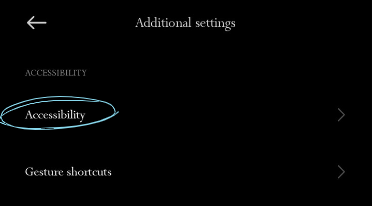
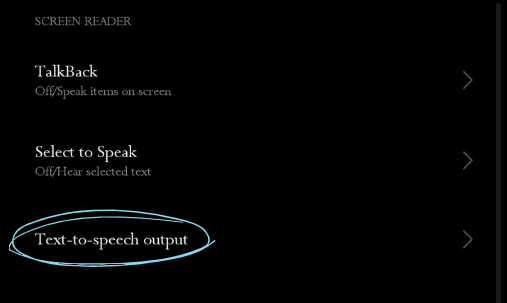
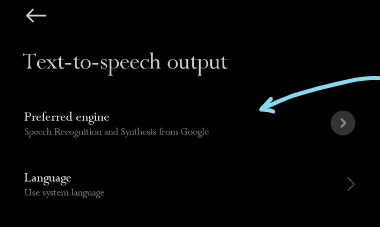
2. Choose TTS Engine:
- You can select your preferred TTS engine, like 'Google Text to speech Engine.’
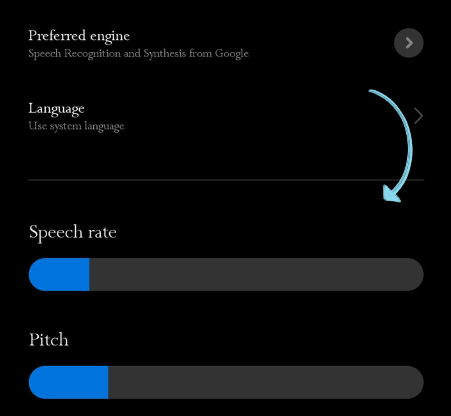
3. Customize voice and speed:
- Tap on 'Speech rate' and 'Pitch' to adjust them.
4. Choose a voice set by tapping on 'Voice.’
5. Use TTS:
- Depending on the device and version, you might have a direct 'Speak' option when you highlight text in some apps. Otherwise, the TTS engine will work in specific apps like Google Play Books, where it can read aloud books.
Option 2: How to read PDFs aloud with Adobe Acrobat Reader
Adobe Acrobat Reader, a pioneer in the realm of PDF tools, offers more than just the ability to view documents like Adobe Reader. As part of its comprehensive suite of features designed to optimize user experience, the software has a built-in function that vocalizes the contents of PDFs. Here’s how to transition from visual reading to auditory learning with Adobe Acrobat Reader.
- Open the PDF in Adobe Acrobat Reader.
- Go to the top-left menu and hit 'View.’
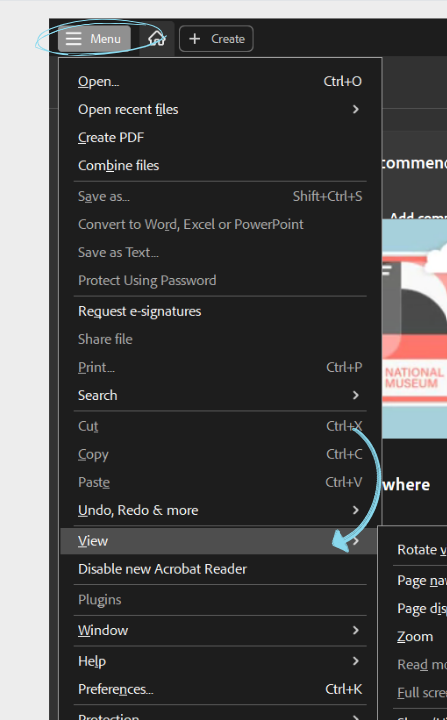
- Hover over 'Read Out Loud,’ and click 'Activate Read Out Loud.’
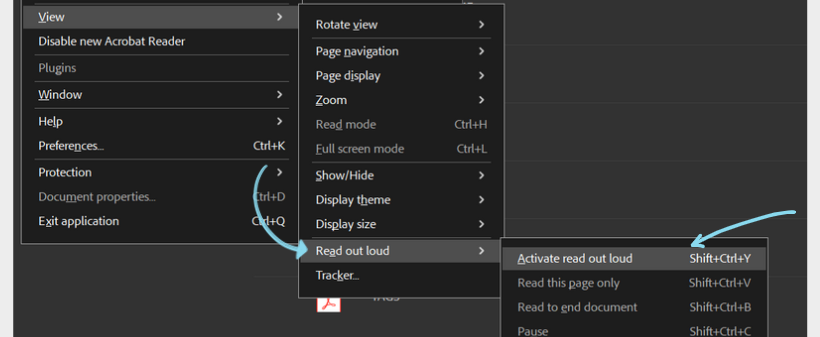
- You can then choose to read the current page or the whole document.
- Select either ‘Read to End of Document’ or ‘Read This Page Only.’
Option 3: How to Read PDF files Aloud with Speechify
If you’re looking for realistic text to speech voices to read your PDFs aloud, look no further than Speechify. With Speechify, not only can you turn your PDFs into audio files indistinguishable from human speech, and its user-friendly interface and diverse set of features also enhance the overall experience, making it a top choice for many looking for TTS solutions. Here’s how Speechify works.
- Download and Install: If you're using a mobile device, visit the App Store (for iOS devices) or Google Play Store (for Android) to download the Speechify app. For desktop users, visit the Speechify website or download the Speechify Chrome extension.
- Open PDF: Open the PDF file you wish to read with Speechify.
- Select text: Highlight the text you want to be read out loud.
- Activate Speechify: Right-click on the selected text and choose the Speechify option from the toolbar pop-up or drop-down menu.
- Listen: Speechify’s voice reader will begin reading the selected text in a natural-sounding voice.
- Customize: Adjust voiceover settings such as reading speed, voice selection, and more to personalize your reading experience.
Why Speechify is the Best Choice to Have a PDF Read Aloud
Speechify stands out as the best choice for reading PDF files out loud for several compelling reasons, such as:
Multi-platform accessibility
Speechify is available on iOS, Android, Google Play, Apple App Store, macOS, and Windows, ensuring that you can access your documents and enjoy TTS across various devices.
Natural-sounding AI voices
Unlike some robotic TTS engines, Speechify boasts 200+ high-quality, natural-sounding text to speech AI voices in multiple languages and accents, enhancing the reading experience.
User-friendly interface
Speechify offers an intuitive interface, making it user-friendly for both beginners and experienced users.
Multilingual support
Speechify supports multiple languages beyond English, including Chinese, Russian, Ukrainian, Spanish, and more, making it a versatile tool for users around the world.
Customizable settings
With endless text to speech features, you can customize reading speed and AI voice selection or set bookmarks to resume reading later.
Supports any format
Speechify is not limited to PDFs. Speechify can read any physical or digital text, including PowerPoints, webpages, Google Drive docs, EPUB books, Microsoft Word documents, and more.
Text to speech on the go
The mobile app versions of Speechify enable you to convert and listen to documents wherever you are, whether you’re using an iPhone, iPad, or Android device.
OCR scanning
Speechify's OCR (Optical Character Recognition) scanning capability allows users to seamlessly convert printed text and images into digital, readable content, including PDFs.
Speechify - Try the #1 PDF Reader
Speechify stands out as the premier choice for those seeking an advanced PDF reader. Beyond its basic functionalities, it integrates a sophisticated text to speech feature that transforms your reading experience, breathing life into static PDF documents. Whether it's an academic paper, a business report, or any document in between, Speechify delivers impeccable AI voice clarity, natural intonations, and multilingual support. Its user-friendly interface combined with Optical Character Recognition (OCR) capabilities also ensures that even scanned texts are not left behind. Try Speechify for free and enhance your reading experience.
Frequently Asked Questions
There are many text to speech apps, such as NaturalReader, but Speechify has the most realistic AI voices to read your PDFs aloud.
You can use Speechify to convert PDFs into podcast-style audio files.
The shortcut to have the iPhone read text aloud is by swiping down with two fingers from the top of the screen after enabling the "Speak Screen" feature in accessibility settings.
With Speechify, you can read any PDF aloud.
Snoop Doggi ja Gwyneth Paltrow ametlikud ja eksklusiivsed hääled – ja peagi lisandub veelgi rohkem kuulsusi.
Meie kvaliteetsed tehisintellekti hääled suudavad ette lugeda kuni 9x kiiremini kui keskmine lugemiskiirus, nii saad sama ajaga palju rohkem õppida. Kuigi 900 sõna minutis kuulamine pole lihtne, siis kes oleme meie, et otsustada, milleks sa võimeline oled? Enamik teisi teksti kõneks muundajaid ei küüni sellise kiiruseni. Proovi meid juba täna! Alusta näiteks 380 sõnast minutis, harjuta kõrvad kiiremini kuulama ja tõsta kiirust vastavalt oma soovile.
Kõik, mida oled oma Speechify raamatukokku salvestanud, sünkroonitakse hetkega kõigi su seadmete vahel, nii et saad kuulata mida tahes, kus tahes ja millal tahes.
Meie ettelugemishääled kõlavad sujuvamalt ja inimlikumalt kui ühegi teise tehisintellektil põhineva lugeja puhul, mis aitab sul paremini aru saada ja kuuldut meelde jätta.
Naudi kõrgresolutsiooniga hääli enam kui 30 keeles ja väga erinevate kõnelejatega. Saadaval on näiteks araabia, hiina, tšehhi, taani, hollandi, inglise, soome, prantsuse, saksa, kreeka, heebrea, hindi, ungari, indoneesia, itaalia, jaapani, korea, norra bokmåli, poola, portugali, rumeenia, vene, slovaki, hispaania, rootsi, tai, türgi ja ukraina keel.
Meie tasuta veebipõhise teksti kõneks muutmise tööriistaga saad teksti sisse trükkida, kleepida või faili üles laadida ja lasta sellel tekst kõneks muuta. Seejärel saad tulemuse helifailina alla laadida ning kasutada seda näiteks pealelugemiseks või muul otstarbel. Speechify premium-tellimus pakub HD-hääli ja isegi ametlikke kuulsuste hääli nagu Snoop Dogg ja Gwyneth Paltrow.
On sul suur dokument, mille soovid kõneks muuta? Pole probleemi. Laadi see lihtsalt üles meie veebipõhisesse teksti kõneks rakendusse ja teisendus toimub sekunditega. Proovi seda juba praegu demoversioonis!




