Speechify for Windows
Write with your voice or listen to text anywhere on your computer — faster and hands-free
 Download for Windows
 Write with Your Voice
Dictate text in any app — up to 5× faster than typing
Keyboard
40 Words Per Minute
Speechify Voice Typing
160 Words Per Minute
AI that Reads to You
Turn PDFs, docs, and more into natural-sounding audio
Natural-Sounding Voices
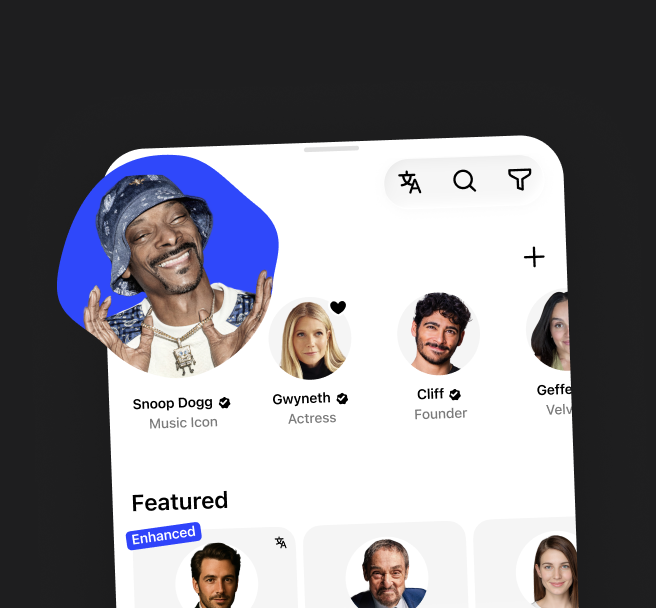
Adjustable Speed
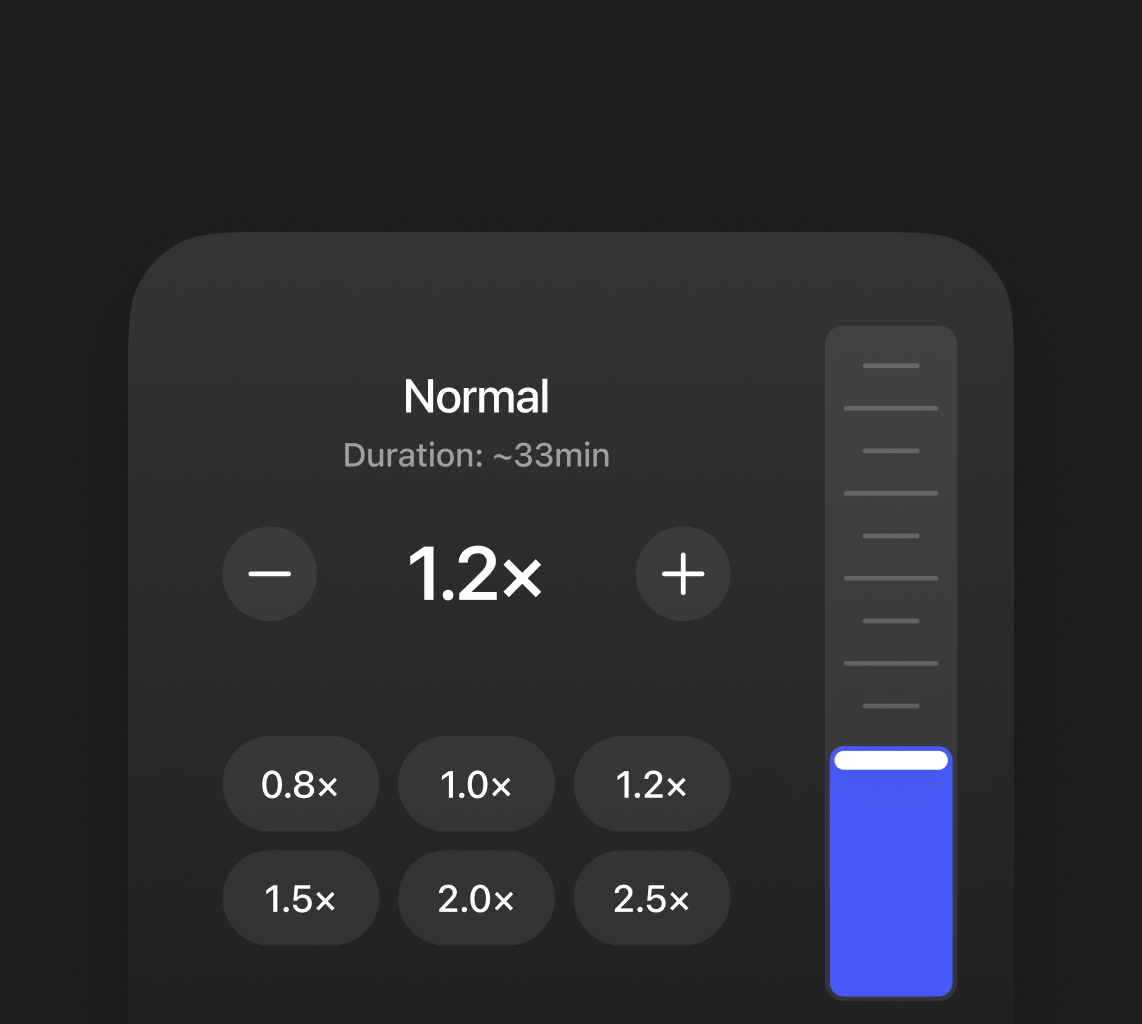

Speaking and listening are faster than typing and reading. Move through emails, documents, and articles more efficiently.

Stay in the flow without switching between typing and reading. Speak your thoughts or listen to content hands-free, so you can focus on what matters

Give your eyes a break by listening instead of reading or speaking instead of typing. Perfect for long sessions without the strain of constant screen time
How people use Speechify

Studying
Turn textbooks, PDFs, and notes into audio or dictate ideas while studying faster

Productivity
Write emails and documents with your voice or listen to reports and notes while multitasking

Leisure Reading
Turn articles and ebooks into audio and enjoy them while walking, commuting, or relaxing

Multitasking
Listen to content or capture thoughts with your voice while cooking, commuting, or working

Language Learning
Improve pronunciation and listening skills by hearing natural voices and practicing with spoken text

Language Learning
Improve pronunciation and listening skills by hearing natural voices and practicing with spoken text
Start using Speechify on Windows
Write with your voice or listen to text anywhere
 Download for Windows
Voice Typing
Just speak naturally — Speechify turns your words into clear, structured text
Speechify fixes mistakes as you dictate, adjusting punctuation and phrasing for clean, natural text
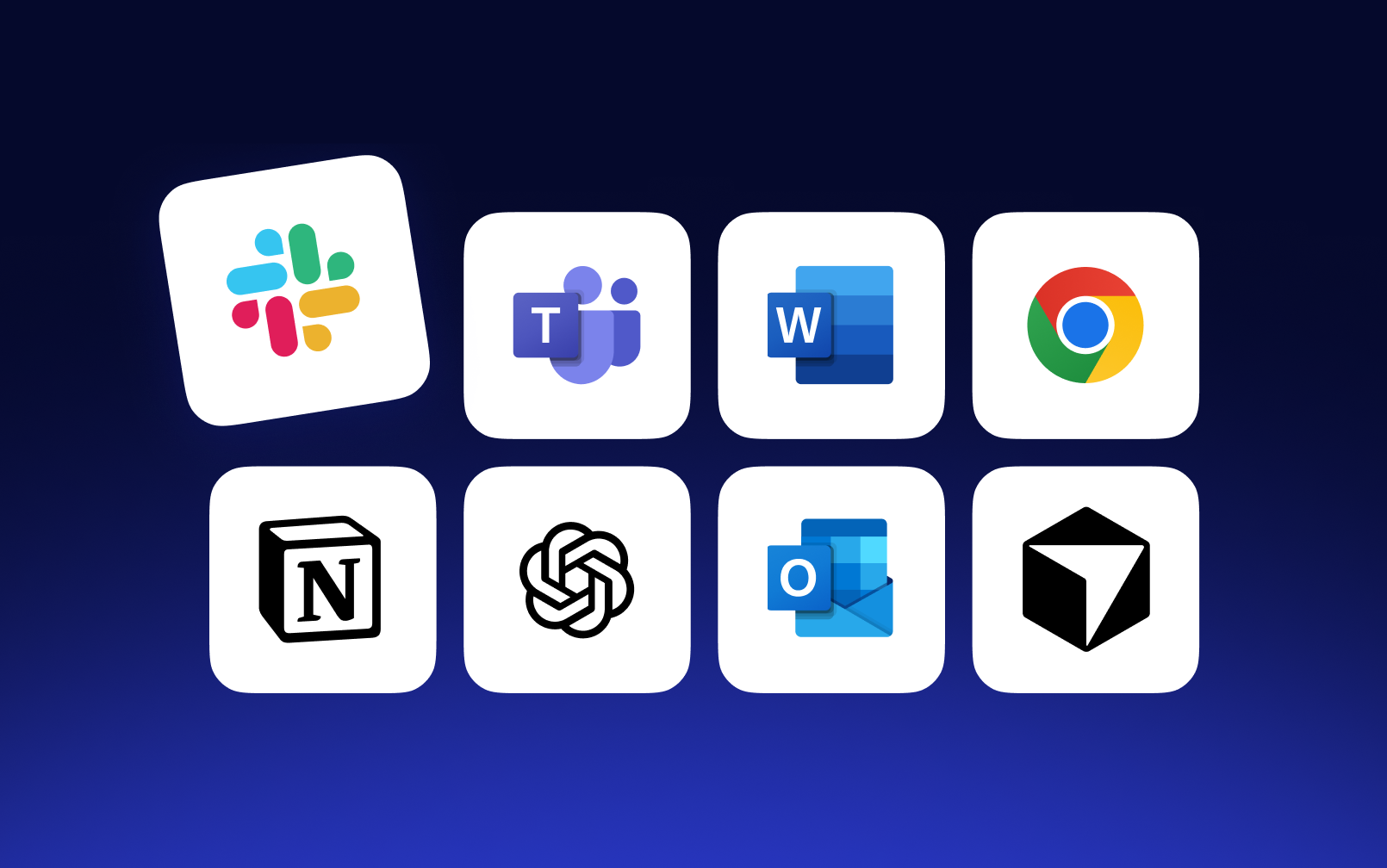
Use dictation in Gmail, Docs, Notion, Slack, ChatGPT, and more — across your apps and websites
Write and reply without typing. Ideal for multitasking and anyone who thinks faster than they type

Built to strict standards for security, availability, and data protection — so your content stays safe

Text to Speech
Turn reading into listening — Speechify transforms any text into natural audio
Convert text to speech in 60+ languages and regional accents using advanced multilingual AI voices

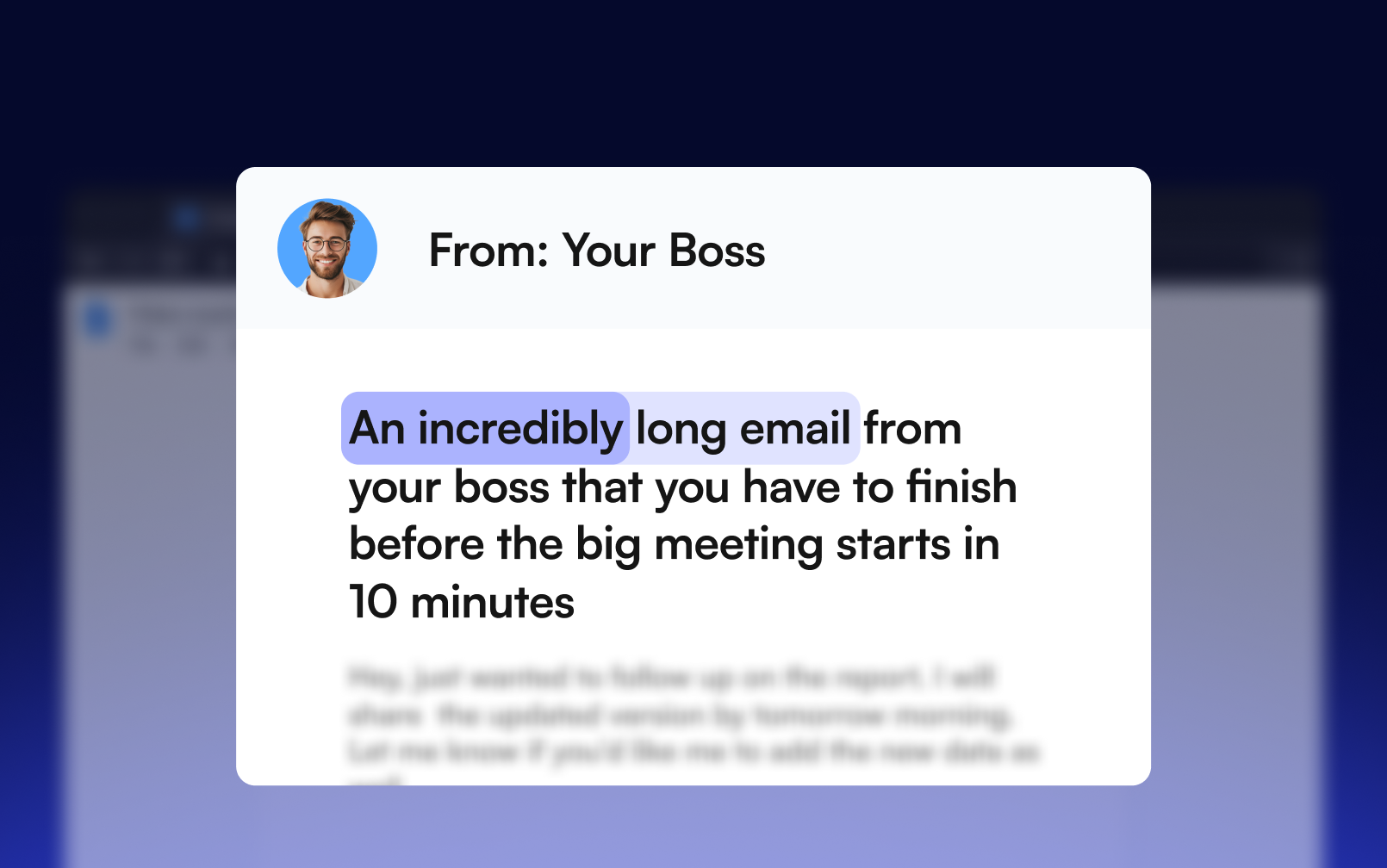
Read along with text highlighting, making it easier to stay engaged and improve comprehension
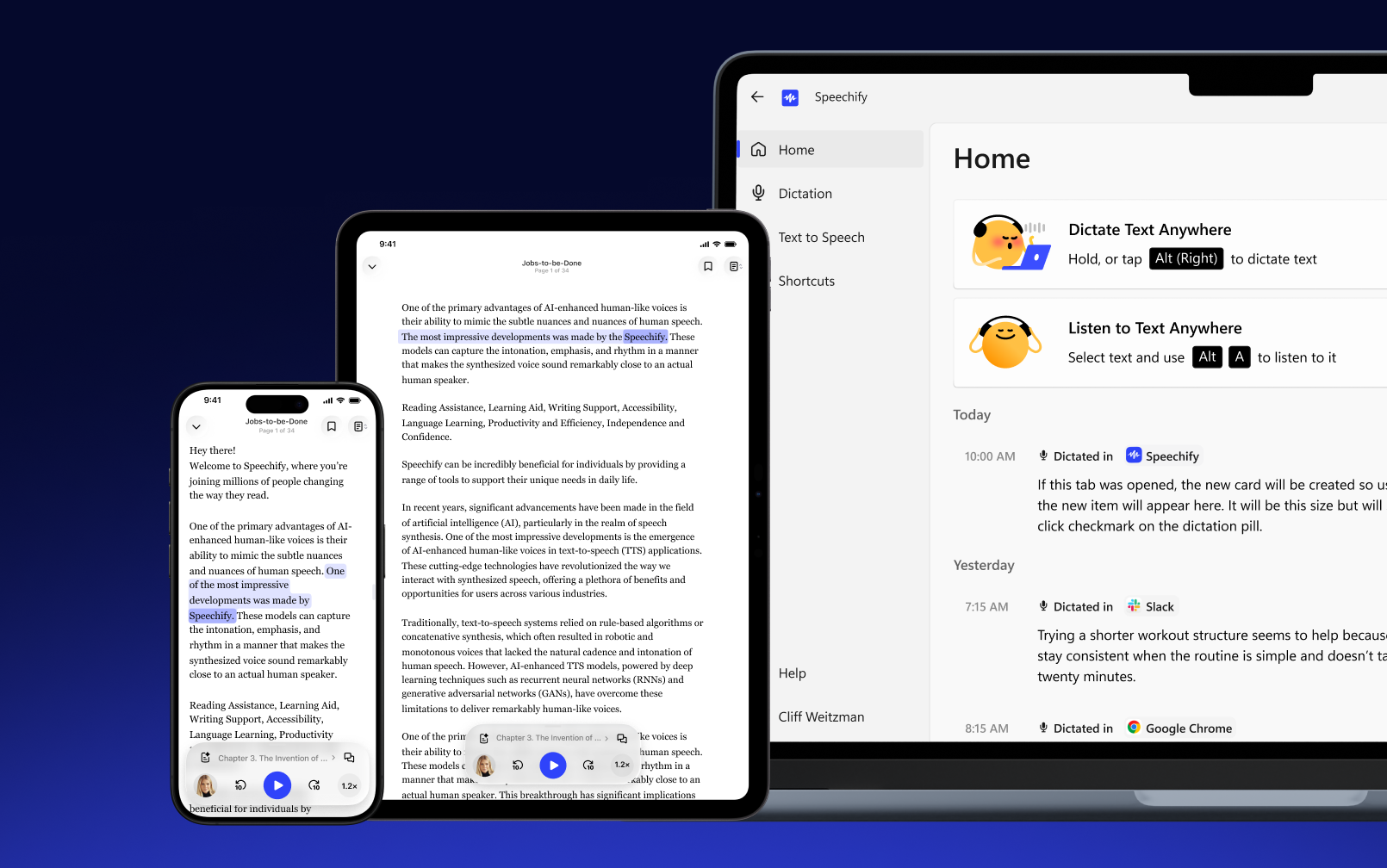
Access your files seamlessly across all your devices and continue listening without missing a beat
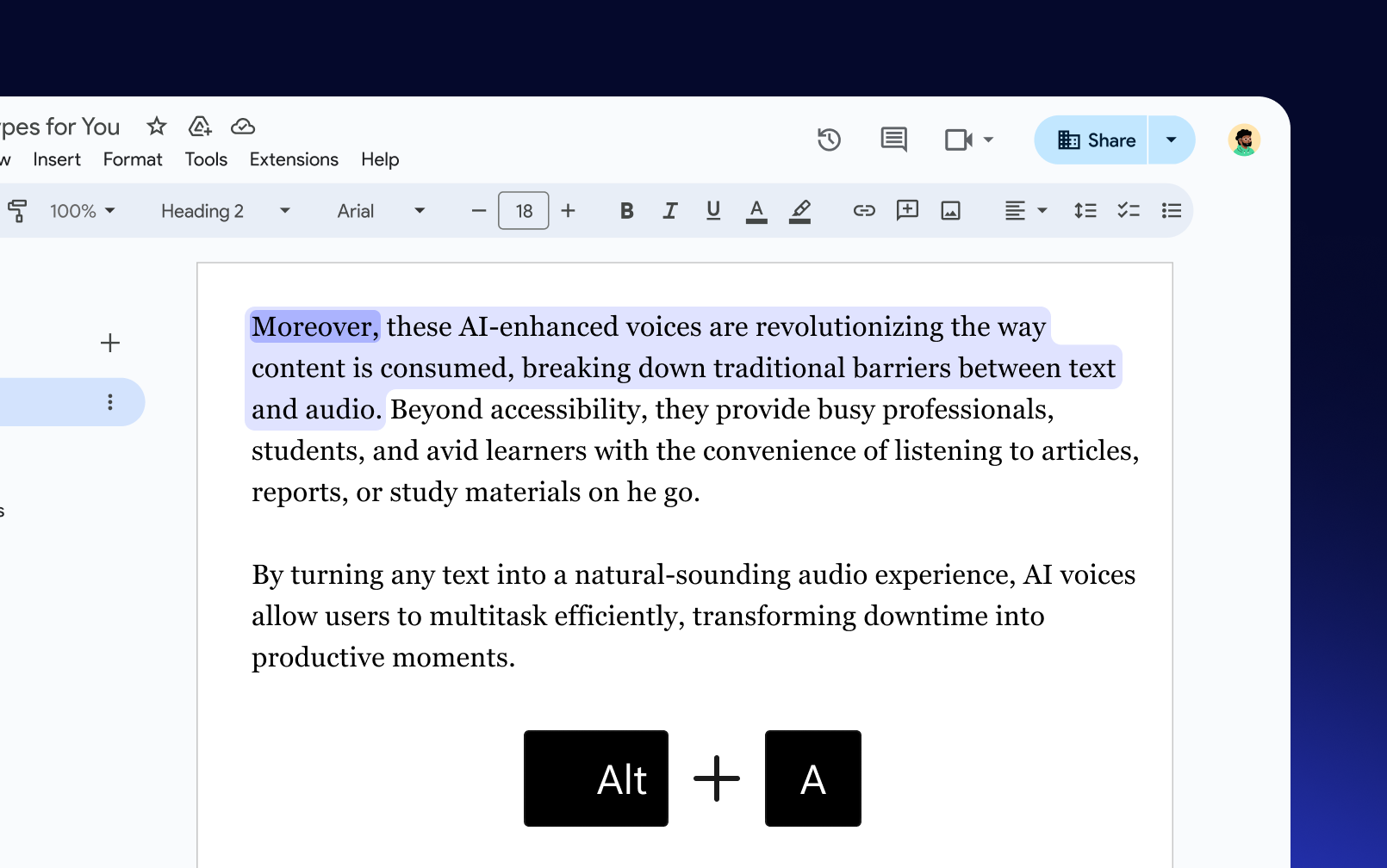
Select any text, then press the shortcut to start listening instantly — in any app you’re using

Sir Richard Branson, Business MagnateSpeechify is absolutely brilliant. Growing up with dyslexia this would have made a big difference. I’m so glad to have it today.

Gwyneth Paltrow, Actress and BusinesswomanSpeechify makes it easy to learn at 2x or even 3x the speed you read with your eyes.
.png?quality=95&width=2800)
Ali Abdaal, most followed Productivity Expert in the world.If there’s one hill I’m going to die on, it’s that speed listening is the best way forward. Speechify is a game-changer for me.
FAQ
Yes, Speechify is available as a dedicated Windows app that lets you use text to speech, voice typing, and more directly on your PC.
Download the Speechify Windows app from the official site, install it, sign in, and you’re ready to start using text to speech and voice typing.
Yes, the Speechify Windows app includes free, unlimited voice typing that works across apps and input fields.
You can listen with the Speechify Windows app by highlighting text and pressing Alt + A or using screenshot to listen with Alt + X, or by accessing these options from the system tray.
Speechify Voice Typing lets you write faster by speaking naturally while removing filler words and correcting grammar automatically.
The Speechify Windows app offers 60+ lifelike AI voices for a more natural listening experience.
Currently, the Speechify Windows app supports English with US and UK accents.
With the Speechify Windows app, place your cursor in any text field, then press and hold the right Alt key to dictate or tap it once to start and again to stop for hands-free dictation.
You can view and customize shortcuts in the Speechify Windows app under the Shortcuts tab by clicking the edit icon and assigning your preferred key combinations.
The Speechify Windows app improves accessibility by using text to speech to read content aloud for users with dyslexia, ADHD, or visual impairments, and voice typing to enable fast, hands-free writing through dictation.
You can type faster on Windows by using Speechify Voice Typing, which offers voice typing dictation with automatic cleanup and formatting.
You can boost productivity on Windows by using Speechify’s text to speech to consume content faster and voice typing to create content quickly without typing.